VictronConnect is Victron Energy's free app for monitoring, configuring, and updating all Smart-enabled Victron products. It connects via Bluetooth to your devices, giving you real-time data, full configuration access, and historical performance charts directly on your phone, tablet, or computer. This guide covers everything from initial setup to advanced features.
Supported Devices
VictronConnect works with every Victron product that has "Smart" in its name or has built-in Bluetooth. This includes:
- Solar charge controllers: SmartSolar MPPT range (all models)
- Battery chargers: Blue Smart IP22, IP65, IP67; Phoenix Smart IP43
- Battery monitors: SmartShunt, BMV-712 Smart
- DC-DC chargers: Orion-Tr Smart range
- Inverters: Phoenix Smart inverter range (with VE.Direct Bluetooth dongle)
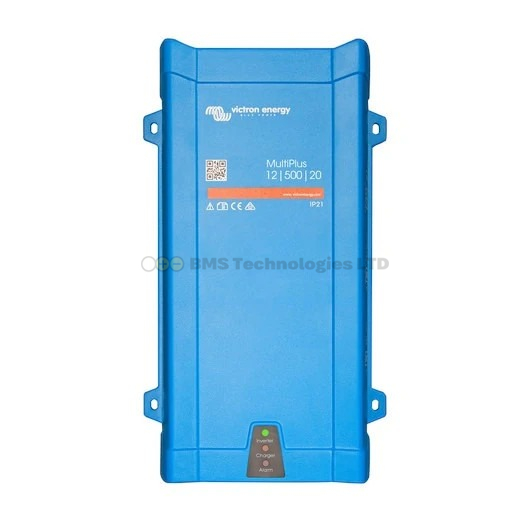
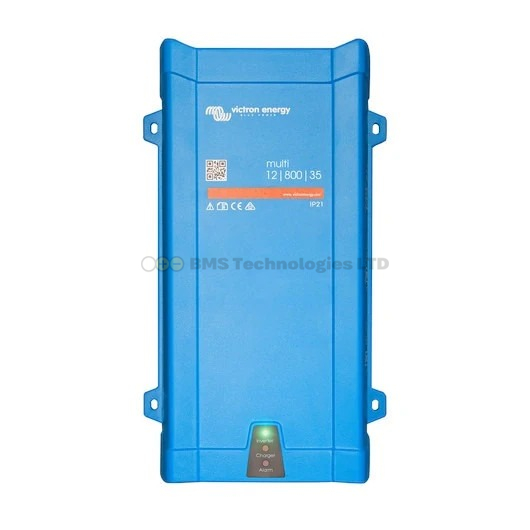
- Inverter/chargers: MultiPlus-II (with VE.Direct Bluetooth dongle or via GX device)
- Battery management: Smart Battery Sense, Smart BatteryProtect
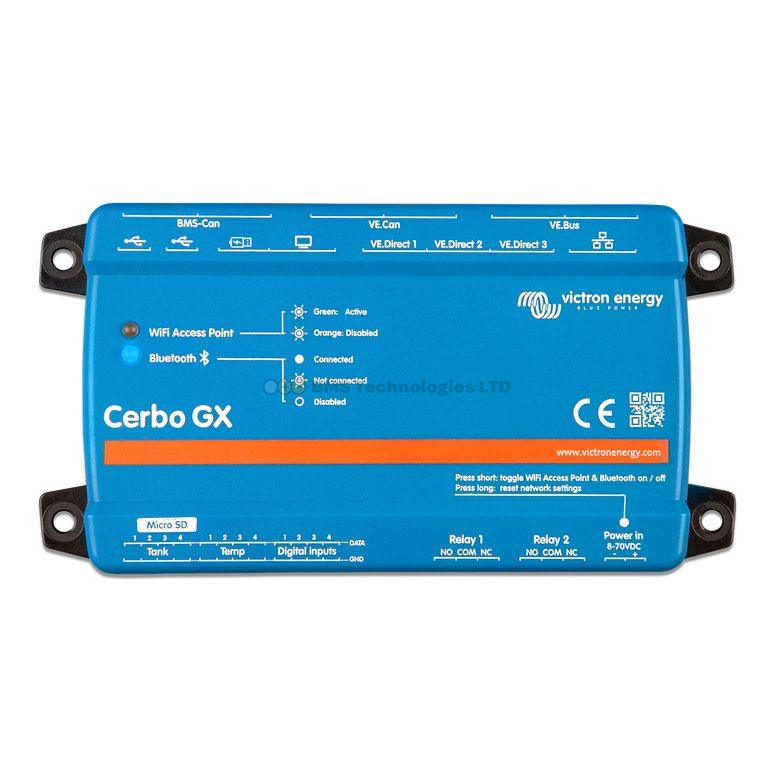
- GX devices: Cerbo GX (limited interaction — full monitoring is via the GX interface or VRM)
Older Victron products without built-in Bluetooth can often be made compatible by adding a VE.Direct Bluetooth Smart dongle (approximately £30–£45). This plugs into the VE.Direct port and adds Bluetooth connectivity.
Where to Get VictronConnect
| Platform | Where to Download | Minimum Version |
|---|---|---|
| iOS (iPhone/iPad) | Apple App Store | iOS 14 or later |
| Android (phone/tablet) | Google Play Store | Android 8.0 or later |
| Windows | Victron website downloads page | Windows 10 or later |
| macOS | Apple App Store (Mac) | macOS 11 (Big Sur) or later |
The app is completely free with no in-app purchases or subscriptions. Victron updates it regularly with new features and support for new products.
First-Time Setup: Pairing a Device
Step 1: Enable Bluetooth on Your Phone
Ensure Bluetooth is turned on in your phone's settings. VictronConnect uses Bluetooth Low Energy (BLE), which is supported by all modern smartphones and tablets.
Step 2: Open VictronConnect
Launch the app. It will automatically scan for nearby Victron devices. Any Smart device within Bluetooth range (typically 5–15 metres) will appear in the device list.
Step 3: Enter the PIN
The first time you connect to a device, you'll be asked for a PIN code. The default PIN for all Victron Smart products is 000000 (six zeros). After entering this, the app pairs with the device and you can change the PIN to something more secure if desired.
Step 4: Rename Your Device (Optional but Recommended)
If you have multiple Victron devices (which is common in a campervan or motorhome), rename each one to something descriptive — for example, "Roof Solar MPPT" or "Leisure Battery Shunt." This makes it easy to identify devices in the device list without guessing which generic serial number belongs to which device.
Navigating the Interface
Device List Screen
The main screen shows all Victron devices within Bluetooth range. Each device shows its type, name (if renamed), and a signal strength indicator. Tap a device to connect and view its data.
Live Data Screen
Once connected to a device, you see real-time data. The exact data depends on the device type:
- SmartSolar MPPT: Battery voltage, charge current, solar power (watts), charge state (bulk/absorption/float), daily yield (Wh)
- SmartShunt: Battery voltage, current (in/out), state of charge (%), consumed Ah, time to go (estimated), power (watts)
- Blue Smart charger: Battery voltage, charge current, charge state, elapsed time
- Orion-Tr Smart: Input voltage, output voltage, output current, charge state
History Screen
Swipe across or tap the History tab to view logged performance data. The history varies by device:
- SmartSolar MPPT: Daily solar yield (Wh), maximum power (W), maximum battery voltage, number of days in bulk/absorption/float for the past 30 days
- SmartShunt: Deepest discharge, cumulative Ah drawn, number of charge cycles, number of full discharges, average discharge depth
- Blue Smart charger: Charge sessions with duration, Ah delivered, and final battery voltage
This historical data is invaluable for understanding your system's real-world performance. If your solar production seems low, checking the MPPT history reveals whether the issue is recent (shading, dirt) or a long-term trend.
Changing Settings
Tap the gear/cog icon to access device settings. This is where you configure your Victron device's behaviour. Common settings changes include:
Battery Type / Charge Profile
The most important setting. Select the correct battery type for your system:
- LiFePO4 (lithium): Sets absorption voltage to 14.2V, float to 13.5V, disables equalisation
- AGM (absorbed glass mat): Absorption 14.4V, float 13.8V
- Gel: Absorption 14.1V, float 13.8V
- Flooded lead-acid: Absorption 14.4V, float 13.8V, equalisation available
You can also create custom charge profiles with specific voltage and timing settings if your battery manufacturer provides recommended values.
Load Output Settings (MPPT Controllers)
SmartSolar controllers with a load output terminal can be configured to disconnect the load at a set voltage or state of charge threshold. This protects batteries from over-discharge. You can set the disconnect/reconnect voltages or use a "BatteryLife" algorithm that automatically adjusts based on daily conditions.
Charger Current Limit
On devices like the Orion-Tr Smart, you can reduce the maximum charge current below the device's rated output. Useful if your alternator or wiring can't handle the full current.
Firmware Updates
VictronConnect handles firmware updates for your devices over Bluetooth. When an update is available, you'll see a notification on the device's page. Updates are recommended — they fix bugs, improve performance, and occasionally add new features.
To update:
- Connect to the device in VictronConnect
- If an update is available, a banner or prompt will appear
- Tap "Update" and wait for the process to complete (typically 1–3 minutes)
- Don't interrupt the update or move out of Bluetooth range during the process
Firmware updates do not reset your settings. Your charge profile, device name, and all configurations are preserved.
VE.Smart Networking
VE.Smart Networking is a powerful feature that allows multiple Victron Smart devices to share data with each other over Bluetooth, improving system performance.
What VE.Smart Networking Does
- Voltage sense sharing: A SmartShunt or Smart Battery Sense measures the actual battery voltage (at the battery terminals, not at the charger output where voltage drop makes readings inaccurate). This precise voltage is shared with the MPPT controller and charger, so they regulate more accurately.
- Temperature sense sharing: A Smart Battery Sense or SmartShunt with a temperature sensor shares the battery temperature. Chargers can then apply temperature-compensated charging, which is important for lead-acid batteries and for lithium low-temperature protection.
- Current sense sharing: The SmartShunt's current measurement is shared with MPPT controllers, enabling them to use tail current detection for more accurate charge state termination.
- Synchronised charging: Multiple chargers (e.g., MPPT + charger) synchronise their charge states so they transition from bulk to absorption to float together, rather than independently.
Setting Up a VE.Smart Network
- Open VictronConnect and connect to the first device (typically the SmartShunt or Smart Battery Sense)
- Go to Settings and find "VE.Smart Networking"
- Create a new network and give it a name (e.g., "Van Battery Network")
- Connect to each additional device and join the same network
- Once all devices are in the network, they automatically share data
VE.Smart Networking works alongside (not instead of) a Cerbo GX. The GX device uses wired VE.Direct/VE.Bus connections for monitoring and control, while VE.Smart Networking uses Bluetooth for real-time data sharing between charging devices.
Troubleshooting Bluetooth Connectivity
If VictronConnect can't find or connect to your device, try these steps:
Device Not Appearing in List
- Check distance: Move within 5 metres of the device. Walls, metal cabinets, and other obstructions reduce Bluetooth range significantly.
- Close other apps: Some apps hold Bluetooth connections open. Close any other Bluetooth-connected apps.
- Restart Bluetooth: Toggle Bluetooth off and on in your phone's settings, then reopen VictronConnect.
- Check device power: The Victron device must be powered on. An MPPT controller with no solar input and no battery may not power up its Bluetooth module.
- Android location permission: On Android, VictronConnect requires location permission to scan for Bluetooth devices (this is an Android OS requirement, not a Victron one). Check that location permission is granted in your phone's app settings.
Connection Drops or Is Unstable
- Only one phone at a time: Victron devices accept only one Bluetooth connection at a time. If someone else's phone is connected, yours won't connect. Ensure no other phones are paired.
- Interference: WiFi routers, microwaves, and other Bluetooth devices can cause interference. Move away from sources of 2.4GHz interference.
- App version: Ensure VictronConnect is updated to the latest version. Older versions may have compatibility issues with newer firmware.
- Factory reset Bluetooth: As a last resort, you can reset the Bluetooth module on most Victron devices by holding the mode button for 10+ seconds (varies by device — check the product manual).
Forgot PIN
If you changed the default PIN and forgot it, you'll need to perform a PIN reset. This involves a physical action on the device (typically holding a button for a specific duration) or using a PUK code printed on the device label. Consult the specific product manual for the reset procedure, as it varies by device.
Tips for Getting the Most from VictronConnect
- Check history regularly: The MPPT daily yield chart is the quickest way to spot a solar performance issue — a sudden drop in daily yield often indicates shading, a dirty panel, or a loose connection.
- Screenshot your settings: Before changing any settings, take a screenshot of the current configuration. If a change causes issues, you can restore the original values.
- Use the demo mode: VictronConnect includes a demo mode that simulates connected devices. Use this to explore the app's features and learn the interface before you even buy your first Victron product.
- Set up VE.Smart Networking: If you have more than one Smart device, setting up a VE.Smart network takes five minutes and measurably improves charging accuracy.
VictronConnect is one of the key advantages of the Victron ecosystem — it gives you complete control over your system from your pocket. Combined with a Cerbo GX for centralised monitoring, you have the most comprehensive and accessible monitoring system available in the leisure vehicle market. Use our price comparison tool to find the best prices on Victron Smart products from UK retailers.